



You've been Spotted!
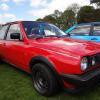
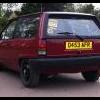
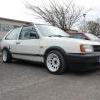
Polo sightings out and about.
6292 topics in this forum
-

- 0 replies
- 562 views
BIG RHYS -

- 1 reply
- 590 views
Guest -
- 9 replies
- 1.3k views
phillyt1988 -

- 7 replies
- 1.2k views
Guest -
- 0 replies
- 650 views
joedee -

- 0 replies
- 536 views
xcore -

- 0 replies
- 680 views
Zachoo -
- 0 replies
- 579 views
jamie_8 -
- 0 replies
- 687 views
LukeGillam -
- 0 replies
- 654 views
Karl -
- 1 reply
- 687 views
 dvderlm
-
- 0 replies
- 543 views
bondbill2k2 -

- 0 replies
- 792 views
Josh Bmx -

- 0 replies
- 632 views
VDUB POLO -

- 0 replies
- 680 views
PoloTommy -
- 0 replies
- 591 views
Karl -

- 0 replies
- 526 views
edwardscott_30 -
- 0 replies
- 582 views
Guest -
- 0 replies
- 738 views
sam1367 -

- 0 replies
- 567 views
MartinB -
- 0 replies
- 738 views
MartinB -

- 1 reply
- 691 views
 Mayney
-

- 0 replies
- 618 views
Iscariot -

- 0 replies
- 589 views
residentmelon -

- 1 reply
- 814 views
 herrdavies