



You've been Spotted!
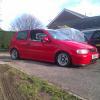
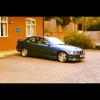
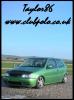
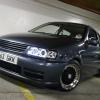
Polo sightings out and about.
6292 topics in this forum
-
- 0 replies
- 571 views
cakey -

- 0 replies
- 610 views
mark_4_polo -
- 0 replies
- 776 views
Bigcarey -

- 0 replies
- 639 views
Polo96CL -
- 0 replies
- 865 views
lupoluke -
- 0 replies
- 556 views
DanRaistrick -

- 0 replies
- 537 views
breadvanbint -
- 0 replies
- 600 views
caravanking -
- 0 replies
- 619 views
H@wK£R -
- 0 replies
- 551 views
TommyPolo -
- 0 replies
- 650 views
luke6N -
- 0 replies
- 619 views
dadude01 -

- 0 replies
- 568 views
Guest -

- 0 replies
- 669 views
MartinB -
- 0 replies
- 654 views
doug -

- 0 replies
- 756 views
Dean -
- 0 replies
- 629 views
taylor86 -
- 0 replies
- 584 views
B4RNY -

- 0 replies
- 620 views
m60_maniac -

- 0 replies
- 867 views
DeanH -
- 0 replies
- 656 views
Dean -

- 0 replies
- 612 views
Mclovin -
- 0 replies
- 617 views
G40_CTM -
- 0 replies
- 570 views
beinn -
- 0 replies
- 719 views
henrypowell666
Recently Browsing 0
- No registered users viewing this page.