



You've been Spotted!
Polo sightings out and about.
6292 topics in this forum
-

- 0 replies
- 809 views
6Newan -

- 3 replies
- 1.6k views
 LiamDavies
-

- 4 replies
- 1.1k views
JS Body & Paint -
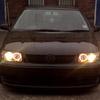
- 0 replies
- 651 views
Dave-6N2 -

- 0 replies
- 608 views
ratyty -

- 2 replies
- 791 views
Guest -
- 0 replies
- 562 views
Arj -
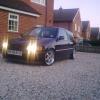
- 0 replies
- 586 views
Tom_ -

- 2 replies
- 1.4k views
 Punz
-

- 0 replies
- 755 views
Mr.omega -
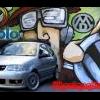
- 0 replies
- 477 views
wheelmanWayne -
- 0 replies
- 526 views
wheelmanWayne -
- 0 replies
- 598 views
Guest -
- 21 replies
- 2.3k views
 DKnight
-

- 2 replies
- 719 views
 MK3_Andy
-
- 2 replies
- 775 views
 B4RNY
-

- 1 reply
- 737 views
joestanton4 -
- 1 reply
- 745 views
 goose
-

- 0 replies
- 639 views
Alex -

- 1 reply
- 835 views
 Gaz
-
- 23 replies
- 2.8k views
CJwardy -
- 0 replies
- 599 views
neale -
- 0 replies
- 564 views
dub17 -

- 0 replies
- 668 views
MartinB -
- 2 replies
- 715 views
Matt_Oldfield
Recently Browsing 0
- No registered users viewing this page.
