


You've been Spotted!
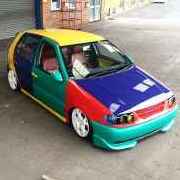
Polo sightings out and about.
6292 topics in this forum
-

- 1 reply
- 860 views
Morgen9n -
- 3 replies
- 1k views
 B-shaw
 -
- 1 reply
- 786 views
pkca123 -
- 0 replies
- 969 views
jpmacken -

- 1 reply
- 1.1k views
 Richc
Richc -
- 9 replies
- 1.5k views
 Buxton
 -
- 0 replies
- 778 views
MancMike -
- 1 reply
- 1.6k views
RyDub -
- 2 replies
- 924 views
Keelan9n -

- 2 replies
- 869 views
philpheasant -
- 0 replies
- 791 views
Matt_N -

- 2 replies
- 1k views
dogleg -
- 0 replies
- 841 views
MancMike -
- 0 replies
- 751 views
vW Greg -
- 0 replies
- 963 views
Oldfield1990 -

- 0 replies
- 669 views
r10tz0r -
- 0 replies
- 691 views
Starry -

- 2 replies
- 889 views
GT Jenny -

- 2 replies
- 894 views
Joe1337 -
- 0 replies
- 823 views
eddy92 -

- 0 replies
- 718 views
Yeti -
- 0 replies
- 793 views
vW Greg -

- 0 replies
- 721 views
gaz56 -

- 3 replies
- 962 views
Yeti -
- 1 reply
- 1.1k views
 Mclovin
Recently Browsing 0
- No registered users viewing this page.